Thank you for your interest in participating in a Peak Season freight bid with RXO.
To compete in the bid, you will be working in Coupa, a third-party, online platform we use to run our contract bids.
In order to help you successfully submit your bid, we’ve created this guide that will familiarize you with the Coupa platform and answer some common questions.
Whether you’re a first-time Coupa user or a Peak Season bidding veteran, you can use this step-by-step tutorial to guide your entry.
Step 1: Retrieve Your Coupa Login Credentials
You should have received an email from Coupa, which will contain your login credentials and notify you that bids are now being accepted.
The email will come from one of the following email addresses:
- For Pre-Peak container repositioning bids:
2026PrePeakRepoBid@rxo.cso.coupahost.com - For Local and/or Expedited Peak bids:
2026PeakBid@rxo.cso.coupahost.com - For Post-Peak trailer repositioning bids:
2026PostPeakRepoBid@rxo.cso.coupahost.com
Can’t find the email?
First, check your spam or junk folder.
If you still can’t find it, reach out to YMProcurement@rxo.com and an RXO rep will help you.
Getting your username and password
This email will contain your username and a link — follow the link to validate your Coupa login credentials.
If you are a new user, you will get a temporary password to log in and set up your account.
If you are a returning user, you will use your existing password.
Note: You will use this username and password throughout the entire bid process.
Step 2: Log In to Coupa With Your Credentials
Go to rxo.cso.coupahost.com.
You’ll see a login form asking for your username and password.
Enter the credentials you created from the link in the email during Step 1.
If you don’t have them, you can either reset your password by choosing “Forgot password?” or generate a one-time login by selecting “Log in with One-Time Ticket.”
PRO TIP: Bookmark rxo.cso.coupahost.com for easy access throughout the bid process.
Step 3: Locate the Current Bid
Once you have logged in, you will see a list titled “Your Events.”
From this list, select the bid event you wish to participate in.
PRO TIP: On this page, bid events are organized with the most recently created at the top.

Step 4: Download & Read the Information Documents for the Bid Event
After you click the name of your bid event, you will be prompted to download information documents about the bid.
You must acknowledge that you have read these documents to continue with the bid process.
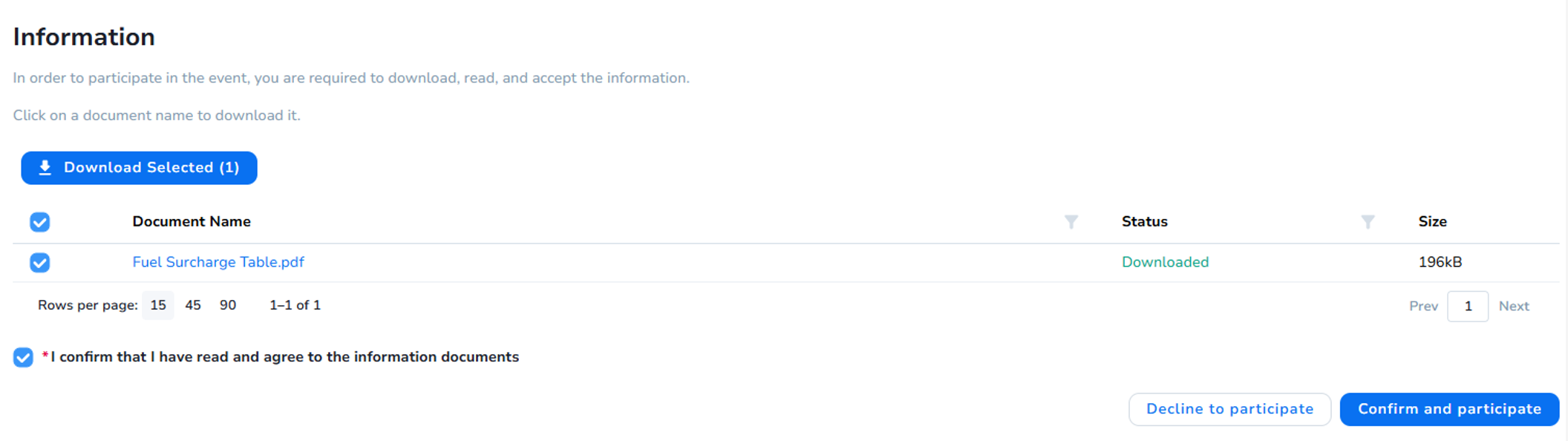
The information documents contain important details about your bid.
The exact set of documents varies depending on your exact bid, but could include the following:
- Welcome Letter
- Coupa Navigation Tutorial
- Informational PowerPoint Deck(s)
- Fuel Schedule
Once you have downloaded and read all documents, click the check box to confirm this.
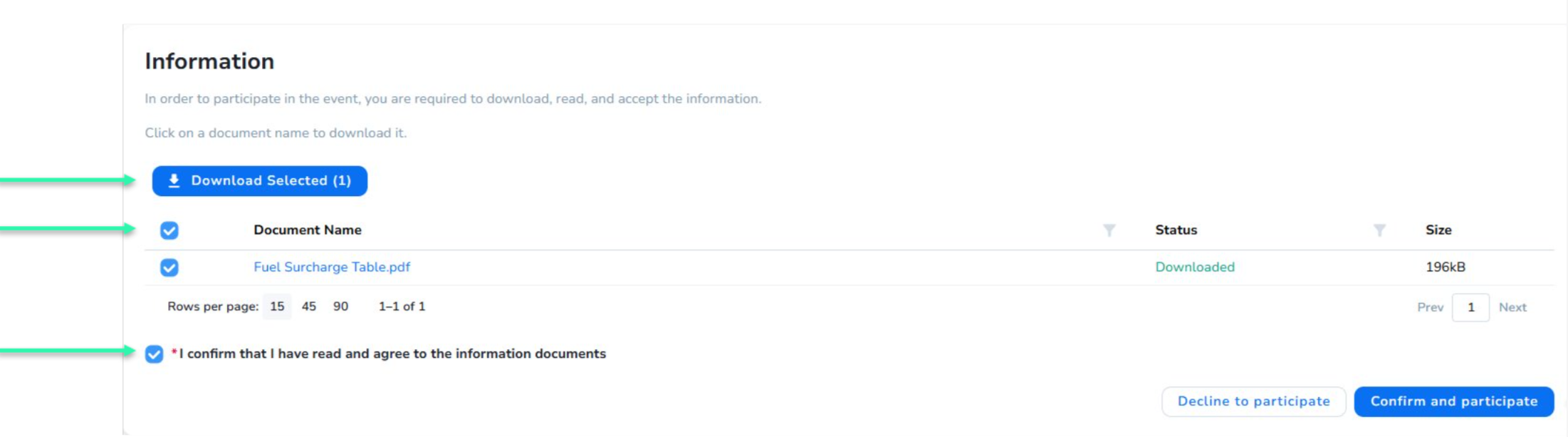
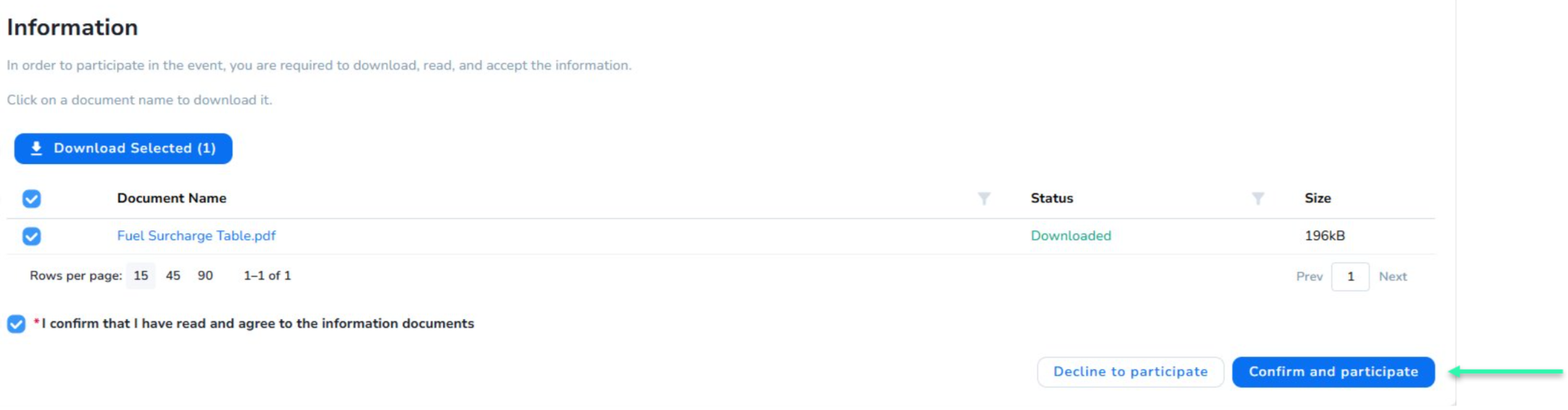
If you would still like to proceed with the bid at this point, select the blue “Confirm and participate” button. Otherwise, check the white “Decline to participate” button to exit the bid.
Step 5: Complete & Submit Your Bid
Once you click “Participate,” you will be taken to the Event Overview page.
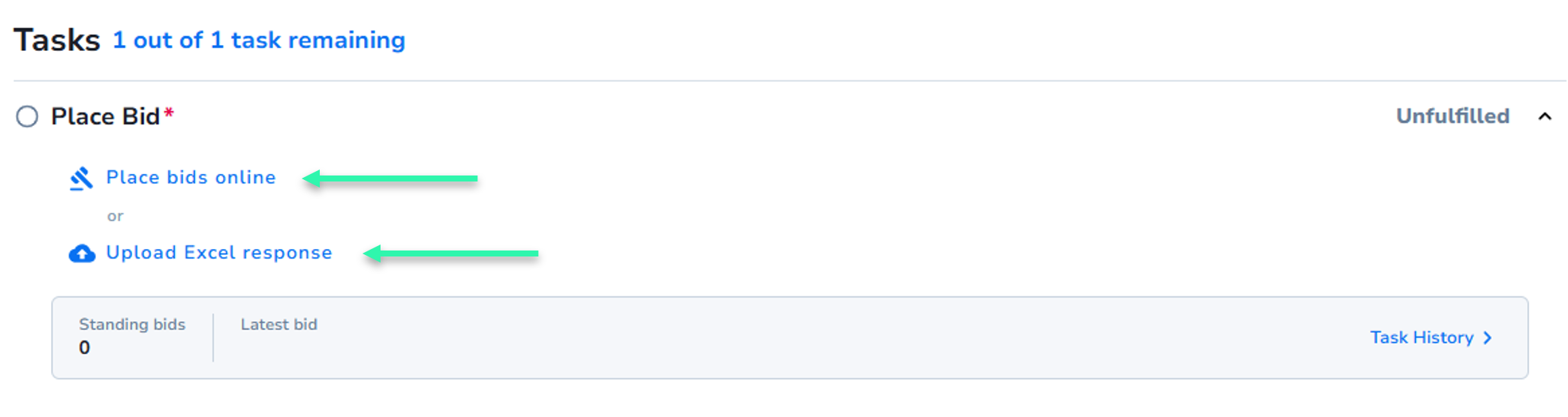
To view the available bidding options, click ‘Place Bid’ as seen in the image below.

Once you click this link, a window will open where you can choose between two bid submission options (either are acceptable):
- Coupa’s online bidding feature
- Excel spreadsheet form
If Using Coupa’s Online Bidding Feature
Select the “Place bids online” link.
On the online bidding page, you will need to complete a set of RFQ questions prior to placing your bid.
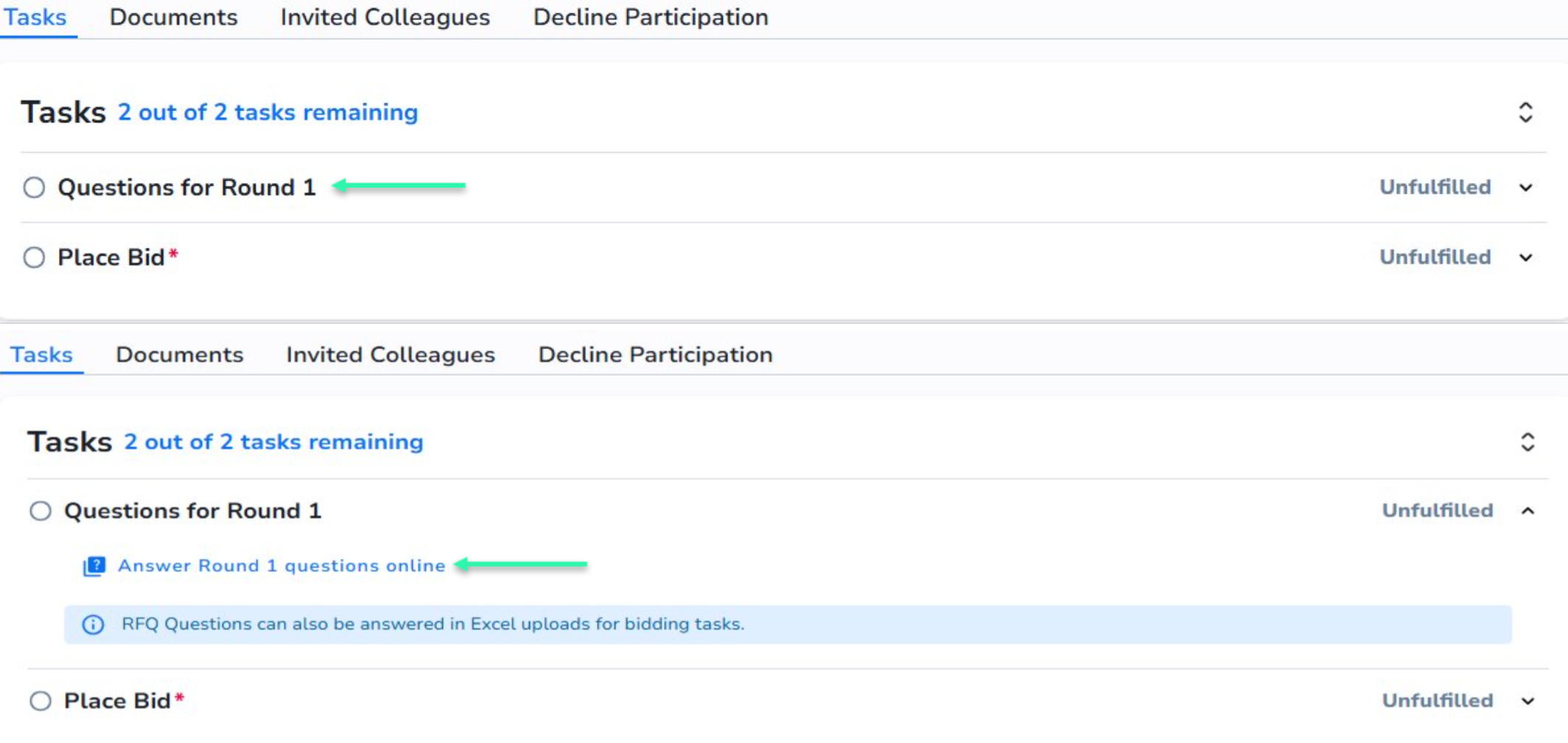
Click the edit button and complete all mandatory questions marked with a red asterisk.
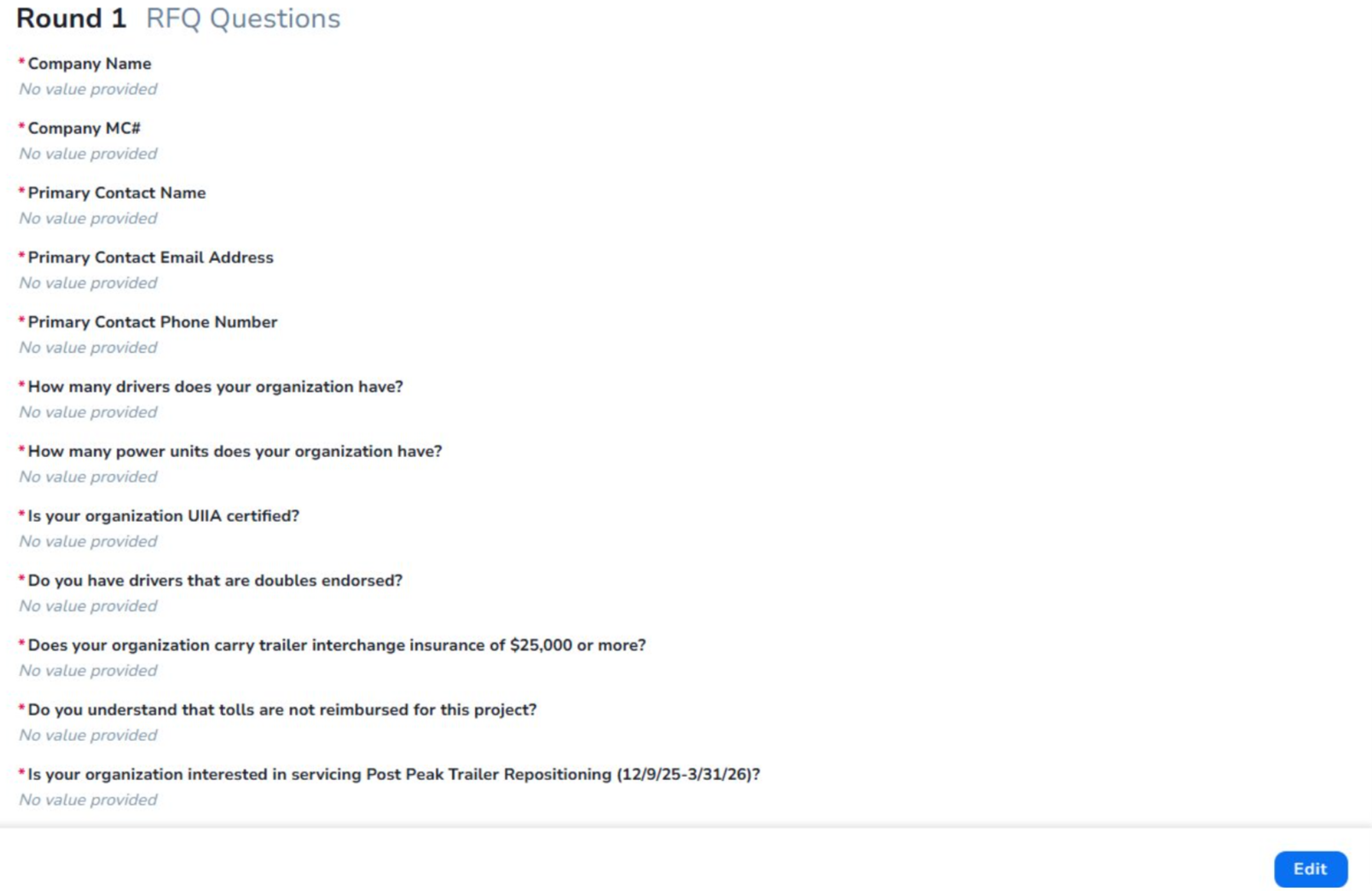
Once you answer the questions, select “Submit”. All RFQ questions must be answered FIRST before any bids are saved and submitted.

Next, close the receipt confirmation and click the event name in the top ribbon to return to the event homepage

Click the “Place bids online” hyperlink under the Place Bid task.
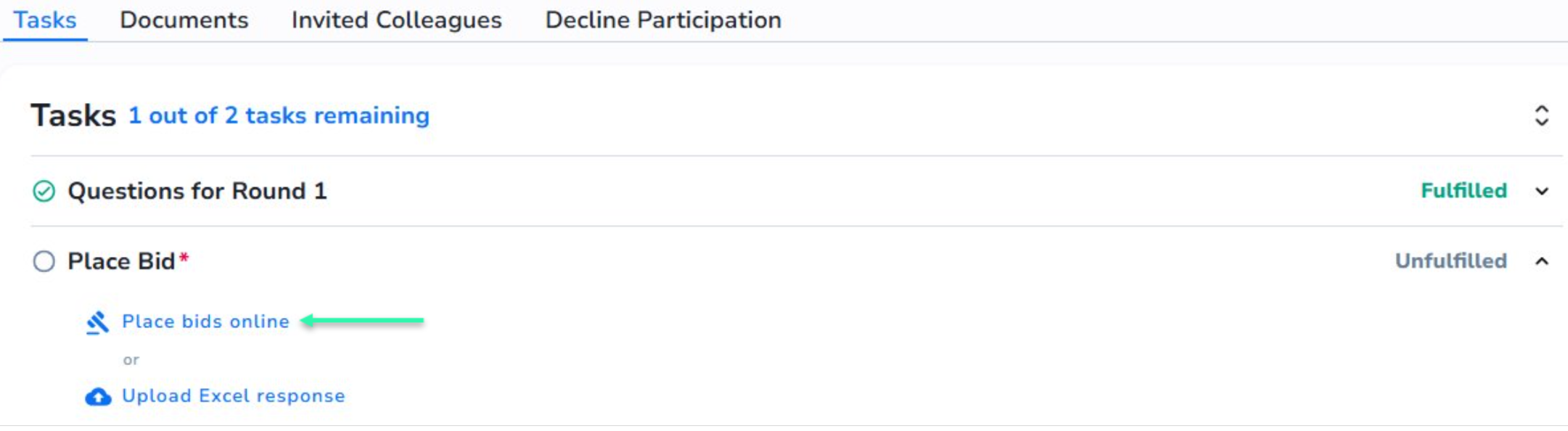
Next, enter your bids by completing ALL fields with a red asterisk. Comments are optional.

Once you have entered all the bids you wish to place, click the Review & Submit button.
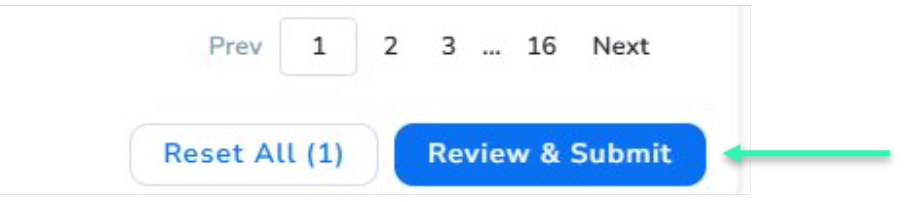
Review bids you’ve entered. If everything is accurate, click the Submit All button.

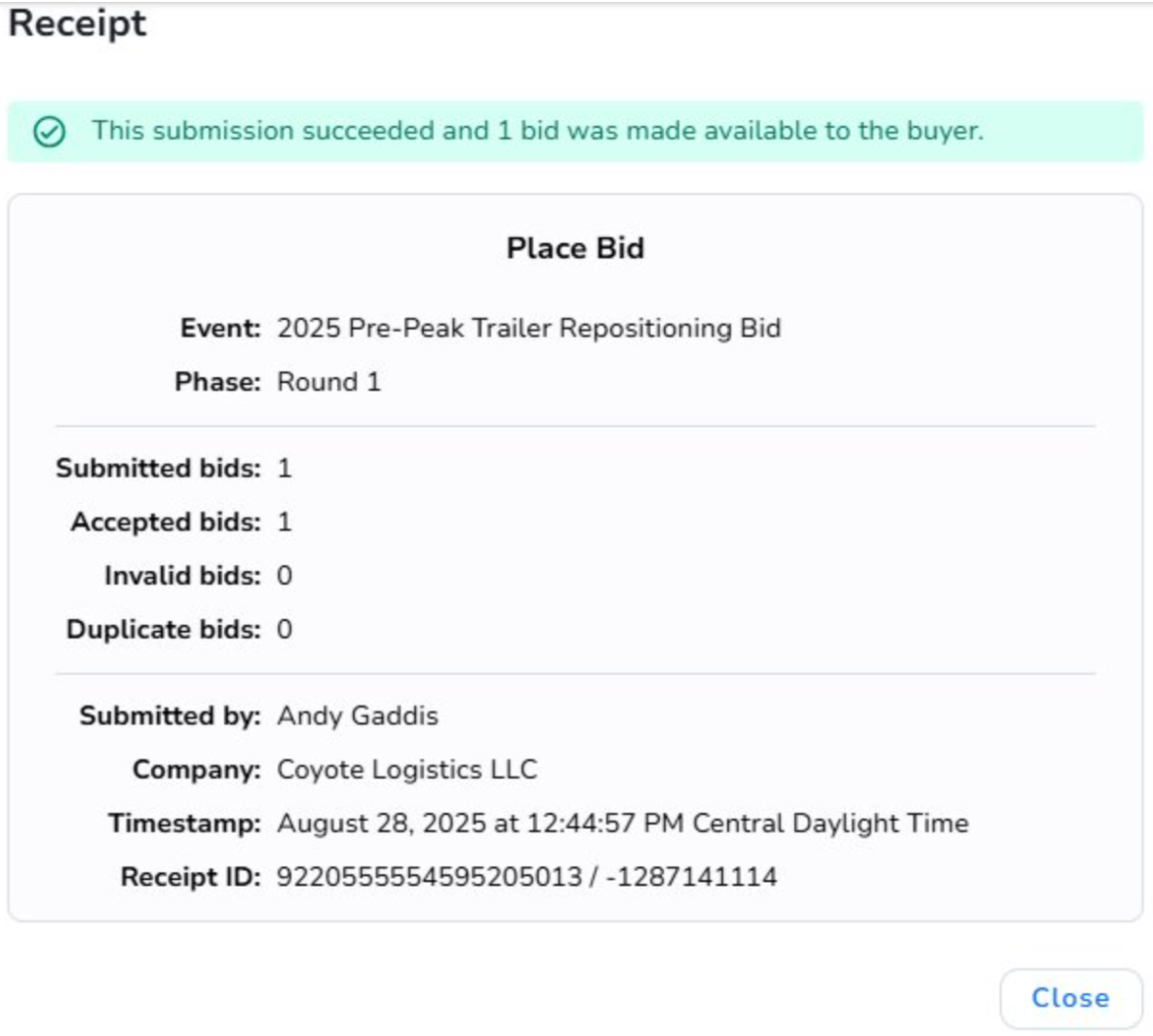
If you successfully filled in all mandatory fields, you will receive a confirmation receipt. Click the Submission successful button in the top right to view:
If you did not enter all mandatory fields, you will receive the following error notice for any incomplete bids.
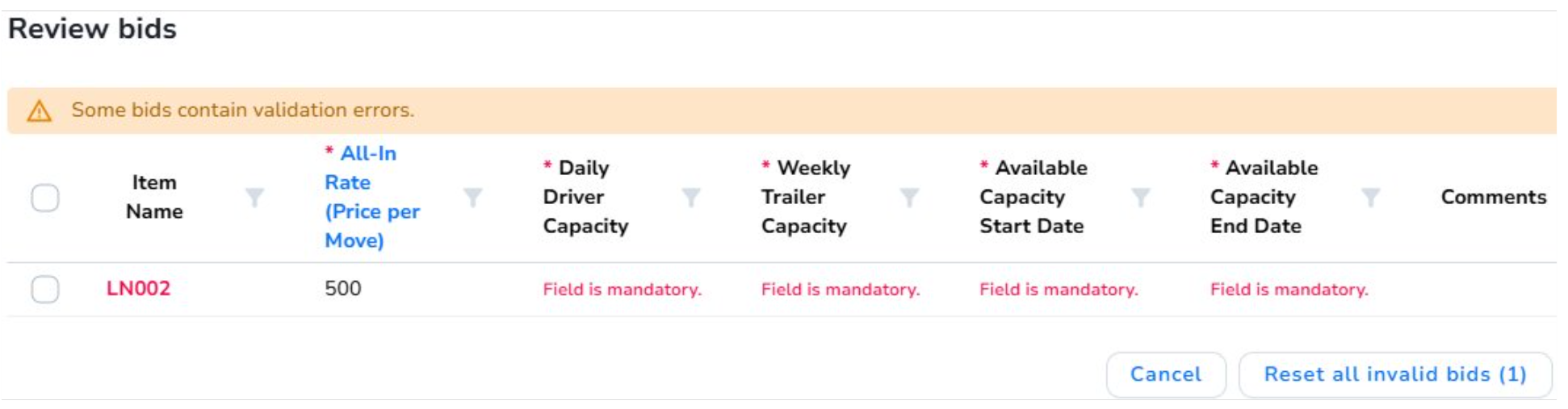
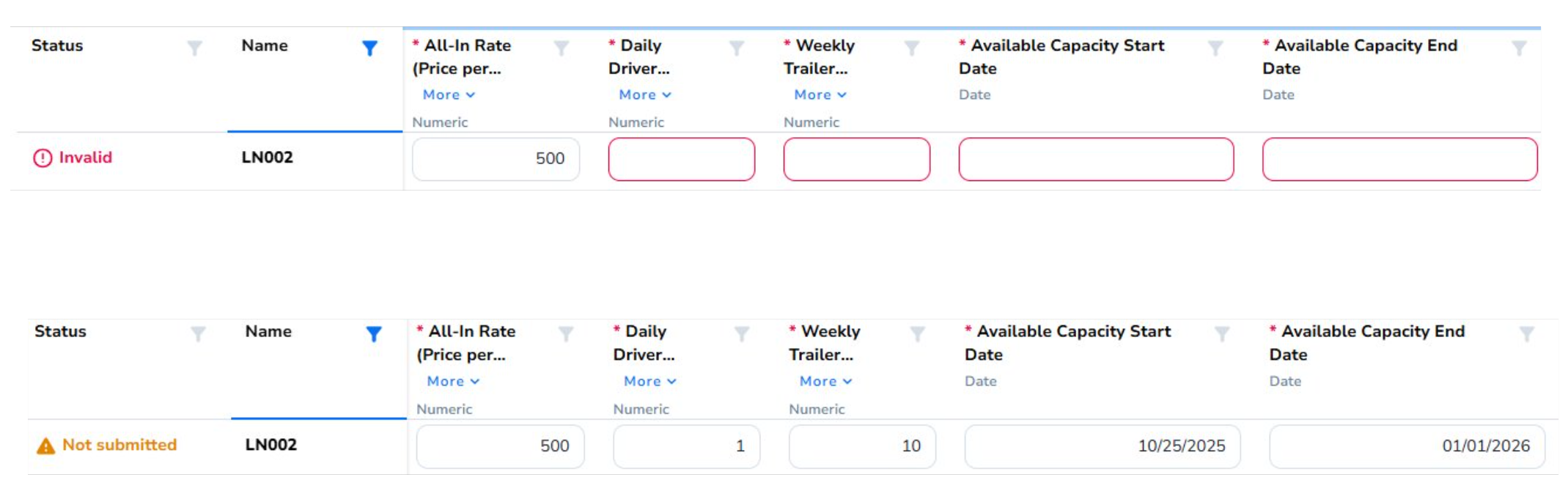
Click cancel to return and make the necessary corrections to the invalid bids by filling the remaining mandatory fields (example below).
If Using an Excel Spreadsheet Form
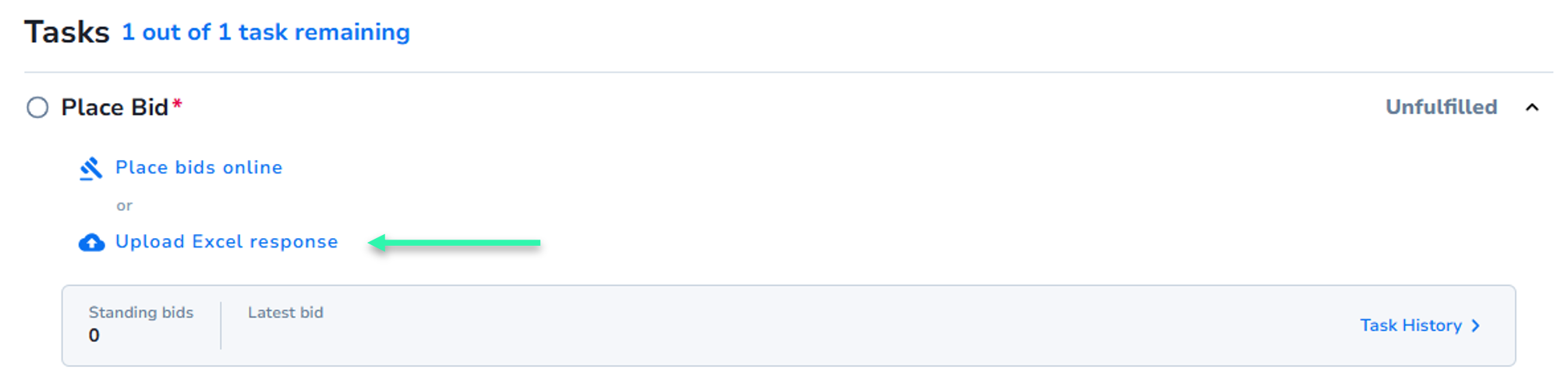
Select the “Upload Excel Response” link.
Select “Download the Excel form” and save it on your computer.
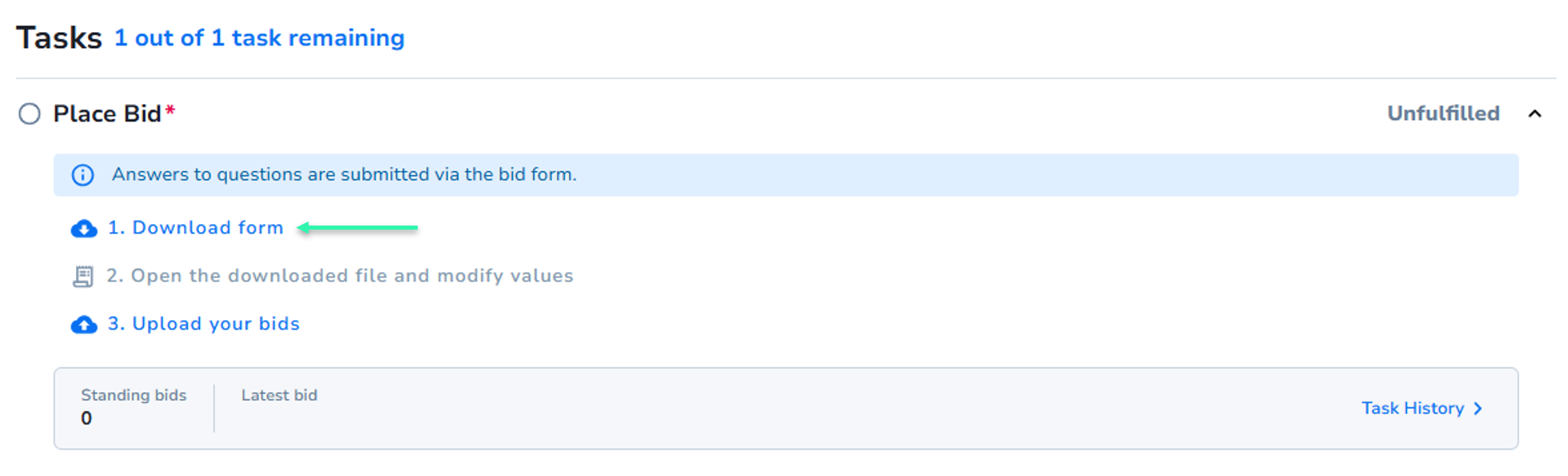
While each bid form varies slightly, you will most likely need to enter:
- Lane-level rate
- Lane-level capacity
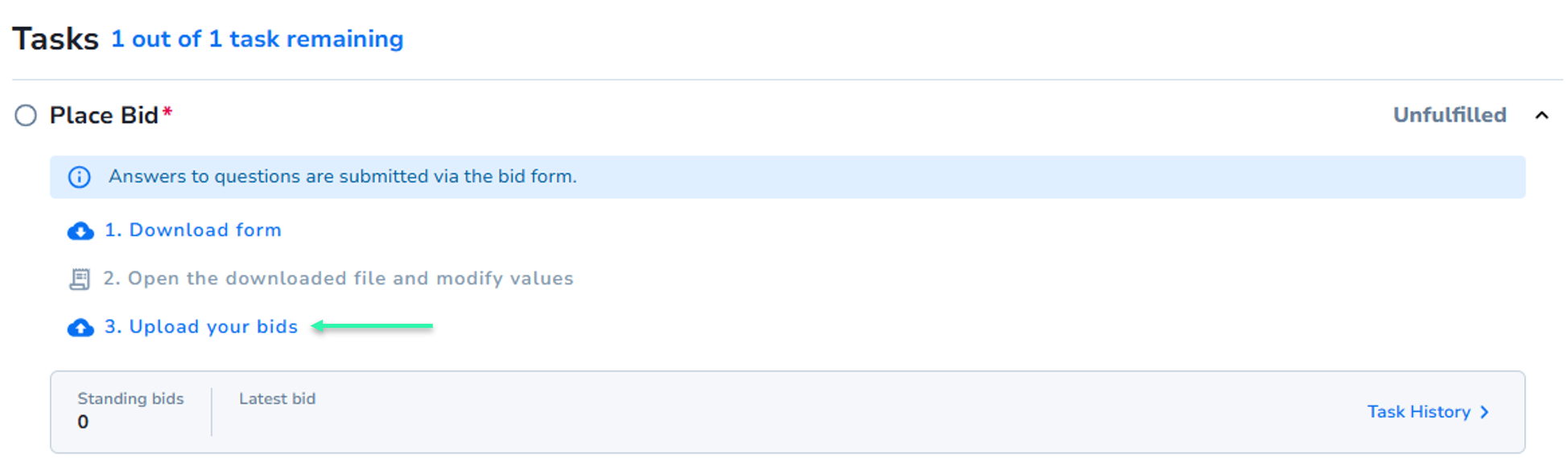
Once you have accurately completed your bid form, save and submit to Coupa by selecting “Upload the Excel form with your bids” in the form window.
If your submission contains errors
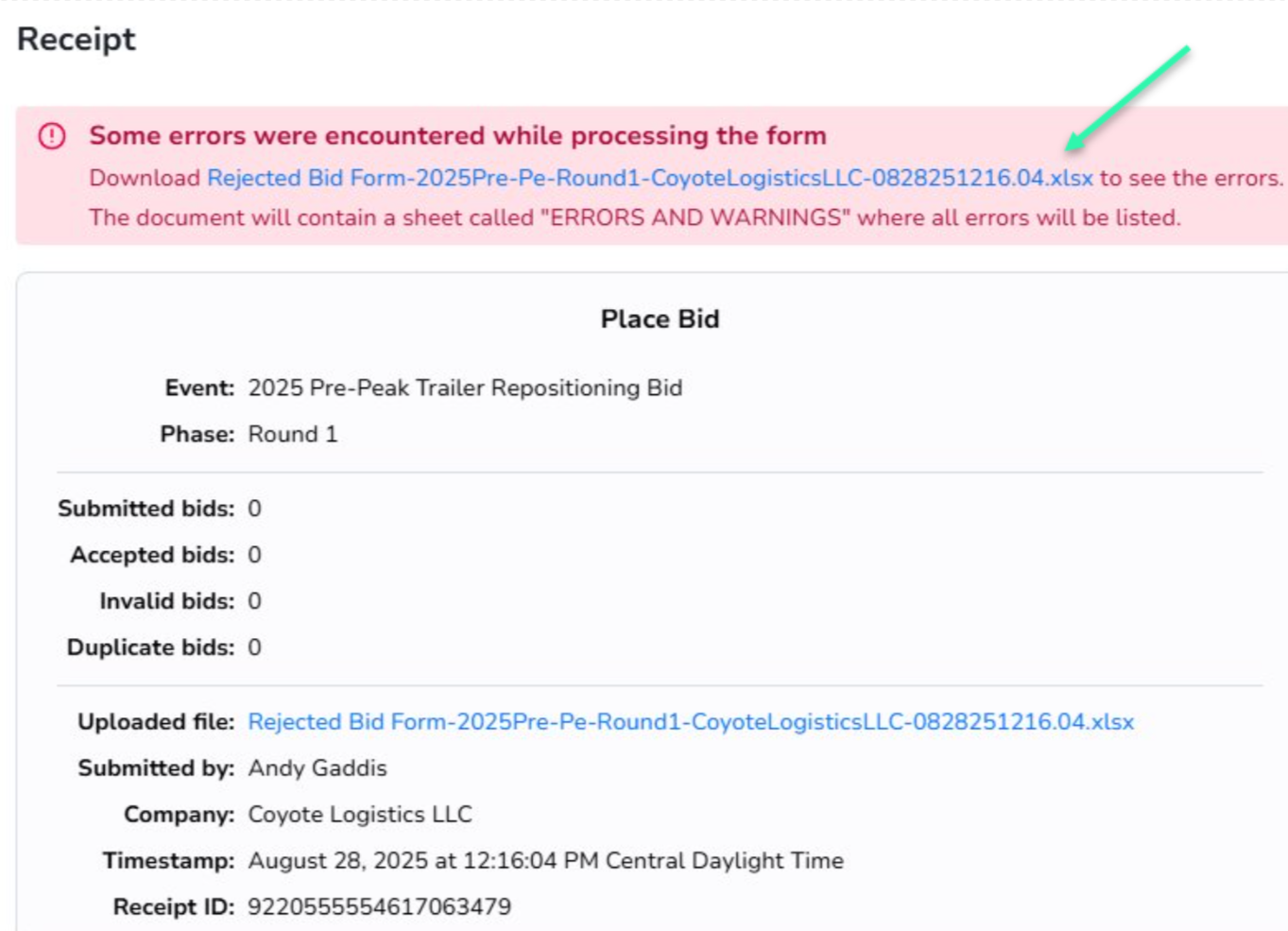
When bidding Online or by Microsoft Excel you must complete all mandatory fields. If a mandatory field is not complete, the bid submission will be rejected by Coupa and accompanied with an error warning similar to the image below after clicking the “More information” hyperlink.
Download “Rejected Bid Form” to view errors and warnings. Once corrected, re-upload the bid form.
Questions?
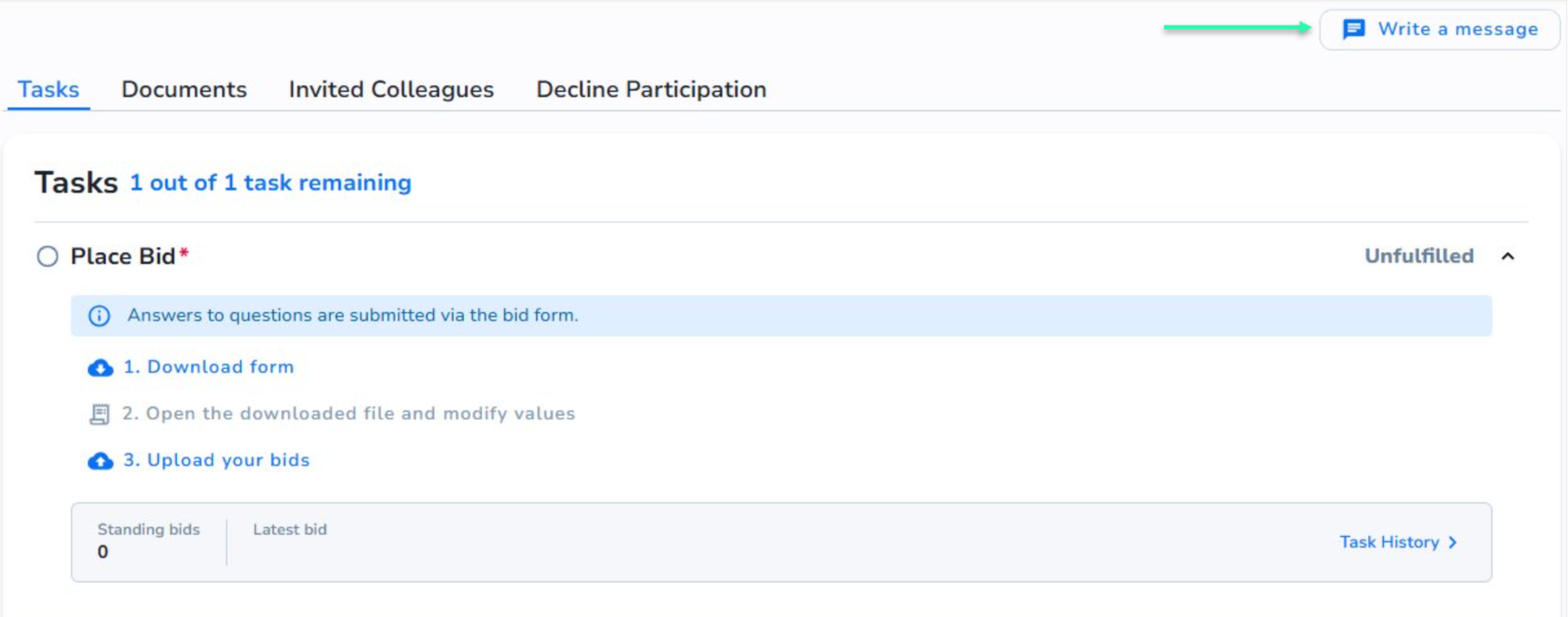
You may submit a question through Coupa from the bid homepage as seen below.
Congrats! You have successfully submitted a bid.
What’s next?
Once we make a decision, we will notify you (via Coupa) of the outcome and thank you for your participation.
You will receive our final decision whether or not you receive an award.